Discord
OpenMU can bring your game into your Discord server:
- Notifications: what happens in the game, like mini games, the castle siege or rare drops, is posted into your channels.
- The bot: it shows how many players are online, keeps a status message of
the game servers up to date, answers slash commands like
/who, links Discord users to game accounts, mirrors the chats of the game and lets game masters act from Discord.
Setting up
Open Discord in the admin panel (route /discord, administrators only). The
page offers two modes: Discord bot for the full integration, or Webhooks
for notifications only. Webhook-only mode skips the bot setup steps, and the
selected mode is saved even before any destinations have been configured.
For the bot, the page guides you through the setup, step by step:
- Create the bot in the Discord developer portal, and paste its token.
- Invite the bot to your Discord server, with the link the page creates. It asks for the permissions the bot needs.
- Set up your Discord server: choose it, and let the page create the channels and roles which the bot uses.
- Notifications: which channel receives which category, and the language of the messages.
- Chat bridge (optional): the chat bridge settings.
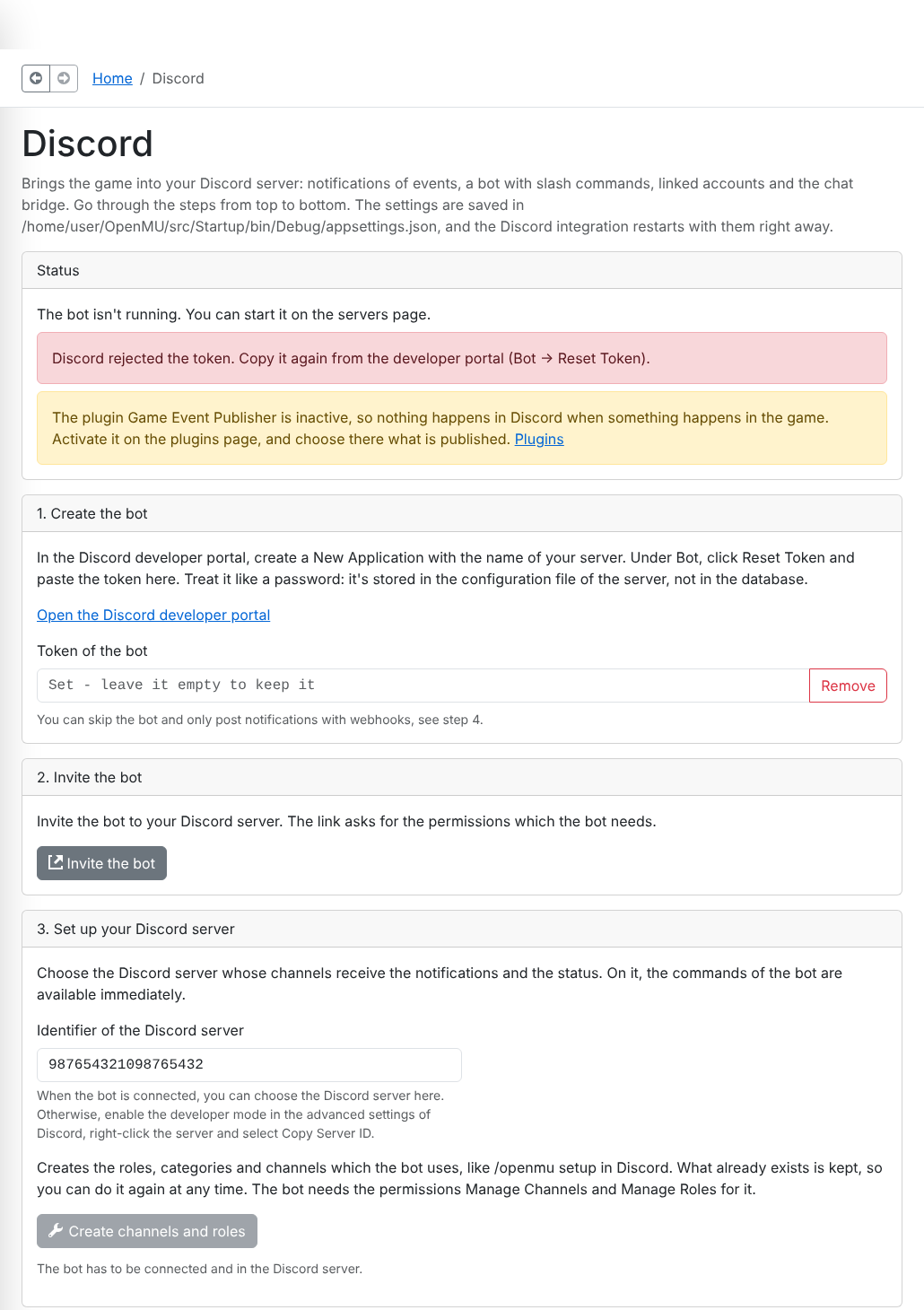
The status at the top tells what's missing, e.g. a rejected token, or that the Game Event Publisher plugin is inactive. Game event notifications require it; the status has a switch for it. Select game events beside each notification category; expand Boss and level milestone filters for boss monster numbers and level milestones. These changes are staged with the other settings and take effect with Save and apply. Game event settings remain in the database; Discord credentials and routing remain in the process configuration.
To find out if everything works, the page has two tests, which use the saved settings:
- Check permissions and channels (step 3) tells which permissions the bot misses, whether it can give the role of linked players (its own role has to be above it), which categories have no channel and whether there is a status channel.
- Send test message (step 4) posts a test message for a category, in the same way as its notifications: by the bot into its channel, otherwise by the webhook. It tells where the message went, or why it failed, e.g. a webhook which Discord doesn't know or a channel into which the bot isn't allowed to post.
Save and apply writes the Discord section of the appsettings.json of the
server,
and the bot restarts with the new settings right away. The token and the
webhook URLs are passwords; they are stored in this file, not in the database.
Settings managed by environment variables or another overriding source show
their effective values and are read-only. Saving does not copy those values or
secrets into the file. Discard changes asks before resetting edits;
navigation
is blocked until unsaved changes are saved or discarded. In a docker container,
the file lives inside the
container: mount it as a volume to keep the settings when the container is
recreated.
The page is available when the admin panel runs in the server process. In the distributed deployment, the bot runs in its own container, which you configure with the settings as environment variables, see Distributed deployment.
A successful test verifies delivery, not that game events are enabled. Configured and verified states are separate; saving invalidates previous check results. Unbind chat now is an immediate action, with confirmation, and keeps the Discord channel and its existing messages.
Notifications
| Category | What is posted |
|---|---|
Events | Mini games which open (e.g. Blood Castle), winners of mini games, invasions which start and end |
CastleSiege | Guild registration, the start and the end of the battle, and the new owner of the castle |
WorldNews | Boss kills, excellent and ancient items which monsters dropped, characters which reach a level milestone |
Notices | Global notices which game masters send with the ! chat prefix |
StaffAlerts | The commands which game masters used in Discord, see Commands for game masters |
Each category is posted into its own channel. The bot posts into the channel of
its layout, e.g. the Events into
#events, unless you choose another channel. Without the bot, a category is
posted by a webhook of the channel (channel settings → Integrations →
Webhooks). A category without either isn't posted. A stopped or connecting bot
falls back
to the configured webhook, using the same route as the delivery test. Uncheck a
category to turn it off without deleting its destinations. Clear a channel
selection to inherit its layout default.
The bot
Slash commands
| Command | Shows |
|---|---|
/online | The online players of each game server, and in total |
/who <character> | The class, the levels and the online state of a character. Characters which are invisible in the game appear offline. |
/guild <name> | The guild master, the number of members and the members which are online |
/events | The events of the next 24 hours, like mini games and invasions |
/rank | The ten best characters by resets, master level and level |
/link <code> | Links the Discord user to the game account, see Linking accounts |
/unlink | Removes the link to the game account |
/character <name> | Selects the character of the account, as which the player appears |
/say <message> | Sends a message to the chat of the game which is bound to the channel, see Chat bridge |
/guildchat bind, create, unbind | Binds the chat of a guild or alliance to a channel, see Chat bridge |
/notify <type> <enabled> | Turns direct messages on or off |
/announce <text>, /kick <character>, /ban <character> | Commands for game masters |
The commands only show information; they don't change anything in the game.
Additionally, players can link their account with
/link, /unlink and /character, and administrators of the Discord server
can use /openmu setup.
Linking accounts
Players can link their Discord user to their game account:
- In the game, the player enters
/discord link. The game shows a one-time code likeABCD-EFGH, which is valid for 10 minutes. - In Discord, the player chooses the command
/linkof the bot from the list which Discord shows while typing, and enters the code. Typed as a normal message,/link ABCD-EFGHdoesn't reach the bot.
The link is to the account, not to a character. The player appears as the
character which requested the code, and chooses another character of the account
with /character <name> in Discord. A Discord user can be linked to one account,
and an account to one Discord user; linking again replaces the previous link.
Because Discord users are the same on every Discord server, the link counts on
every Discord server the bot is in.
/discord in the game shows the link, and /discord unlink in the game or
/unlink in Discord removes it. In the admin panel, the Links button in the
account list shows the links of an account and can remove them.
Linked users get the role Linked Player of the layout on your Discord server, so you can, for example, open channels only for players. The bot needs the Manage Roles permission for it, and its own role has to be above Linked Player in the role list. When a link is removed, also in the admin panel, the role is removed again, and the player loses access to the channels of guilds. If the bot isn't connected or can't remove the role, it retries it later, also after the Discord settings were changed. The role is removed on the Discord server on which it was given, also when you choose another server or layout in the meantime. If the bot isn't in that server anymore, it logs a warning and retries it when it's added again. These retries are only kept in memory: after a restart of the server, remove a role which is left over by hand.
The answers to these commands are only visible to the player who used them. The codes are stored as hash in the database, and every code can only be used once.
On the Discord server which you choose in the setup, the commands are available immediately. On others, Discord may take up to an hour to show them.
Status
The presence of the bot shows how many players are online. In the status channel
of the layout (#server-status), or in the one which you choose, the bot keeps a
message with the status of the game servers up to date. Use a channel in which only the bot writes; it finds its
message again after a restart.
The layout of your Discord server
Create channels and roles on the Discord page, or /openmu setup in Discord as
administrator of the Discord server, creates the following roles, categories and
channels:
| Category | Channels |
|---|---|
| Info | #announcements (notices of game masters), #events (events and castle siege), #server-status |
| Community | #world-news, #world-chat, #general |
| Staff | #staff-alerts, #gm-commands — only visible to the role GM |
The roles are GM and Linked Player. Only the bot can write into the
channels for notifications and the status. #announcements becomes an
Announcement channel on community servers, so that other Discord servers,
e.g. the ones of guilds, can follow it.
You can do it again at any time: what already exists is adopted by its name and nothing is created twice. Nothing is deleted or renamed, and only the permissions which the layout defines are changed. So you can also start with an existing Discord server, or with a server template (see below), and let it add what's missing. Its result shows what was created, what already existed and what failed. Afterwards, move the role of the bot above Linked Player in the role list of the Discord server.
The bot finds the channels by their name: when you rename one, choose it on the Discord page instead. When the bot is in more than one Discord server, it posts into the channels of the one which you choose in the setup.
Your own layout
The layout is defined in a JSON file. To use your own, copy the default layout, adapt it and enter its path as Layout file in the advanced settings of the Discord page. Each role, category and channel has a key, which has to be unique, and a name. Channels can have these properties:
| Property | Description |
|---|---|
topic | The topic of the channel. |
isAnnouncement | Creates an announcement channel, on community servers. |
isReadOnly | Only the bot can write into the channel. |
notifications | The categories of notifications which are posted into the channel, e.g. [ "Events", "CastleSiege" ]. |
showsStatus | The bot shows the status of the game servers in the channel. |
With visibleTo, a category is only visible to the listed roles, e.g.
"visibleTo": [ "gm" ].
Server templates
Discord can copy the structure of a Discord server with a server template:
In the settings of a set-up Discord server, open Server Template, create a
template and share its link. Everybody who opens the link creates a new Discord
server with the same channels, roles and permissions, but without messages and
members. After inviting the bot to it, /openmu setup adopts everything and
reports that nothing was missing.
Chat bridge
The bot can mirror the chats of the game to Discord channels, in both directions:
- the world chat: players write into it in the game with
/world <message>, and all players of all game servers read it. It's mirrored to#world-chatof the layout. - the chat of a guild (
@in the game) or an alliance (@@), when its guild master binds it to a channel.
The chat of the players is private, so nothing is mirrored by default: enable Publish guild, alliance and world chat in the configuration of the Game Event Publisher plugin. Players who enter the game are told when the chat of their guild or alliance is mirrored.
Binding the chat of a guild
The guild master links the Discord user to the account (see
Linking accounts) and selects the guild master character
with /character. Then there are two ways, which you can restrict in the chat
bridge settings of the Discord page:
- On your Discord server: as soon as the guild master is linked, the bot
creates a channel like
#guild-legendsin the category Guilds of the layout, and binds the guild chat to it. The guild master can also do it with/guildchat create, e.g. for the chat of the alliance. Only the bot and the members of the guild who linked their Discord user can see the channel. The linked guild master can moderate the messages in it (Manage Messages, only in this channel). The bot keeps this up to date when users link themselves and every 10 status updates, e.g. for new guilds, new members and a new guild master. It never creates a second channel for a guild: it reuses the bound channel. It doesn't reuse other existing channels, even with the name of the guild, because others might see them. Only the selected character counts: the guild master has to select the guild master character with/character, for the channel and for the moderation. It needs the Manage Channels and Manage Messages permissions for it; Check permissions and channels on the Discord page tells if one is missing. Turn off Create guild channels automatically on the Discord page (Discord__Bot__ChatBridge__AutoCreateHostedChannels) if only/guildchat createshould create them. - On the Discord server of the guild: the guild master invites the bot to
the Discord server of the guild, and uses
/guildchat bindin the channel which should be bound. This requires the permission to manage the channel. You can allow only some Discord servers withDiscord__Bot__ChatBridge__AllowedDiscordServerIds.
The option scope of these commands chooses the chat of the alliance instead,
which only the master of an alliance can bind. A bound chat isn't moved to
another channel silently: use /guildchat unbind in the bound channel first.
/guildchat unbind removes the binding; the current guild master and users who
manage the channel can use it, so the administrators of a Discord server can
always remove a binding from their server. A former guild master can't change
the binding anymore.
The binding is also removed when the guild is disbanded, the channel is deleted
or the bot is removed from the Discord server. You can also remove bindings on
the Discord page of the admin panel.
Writing from Discord
Only Discord users who are linked to an account can write into the game, as
their selected character, which has to be a member of the guild or alliance. The
chat ban of the account applies, and a user can send 10 messages per minute,
by default (Discord__Bot__ChatBridge__MaximumMessagesPerMinute). The messages
go through the plugins of the plugin point External chat message received, e.g. a filter,
which can stop them; the plugins of Chat message received only get the
messages of players in the game.
In the game, the messages appear with the character name and the prefix @,
e.g. @Hero, so a Discord user can't pretend to be a character in the game.
Mentions, markdown and line breaks are removed, custom emojis become :name:,
and long messages are cut, by default after 100 characters.
To read the normal messages in the channels, the bot needs the privileged
Message Content intent: enable it for the bot in the Discord developer portal
under Bot → Privileged Gateway Intents, then turn on Read messages on the
Discord page or set Discord__Bot__ChatBridge__ReadMessages to true. When a
message can't be sent to the game, the bot reacts with ❌ (permission Add Reactions), and /say tells why.
Without the intent, players use /say <message>. Discord only approves the
intent for verified bots, which are in more than 100 Discord servers, with a
reason.
The game client
MuMain, the open source game client, has its own Discord features. It asks the server how it's connected to Discord, when the character enters the game:
- its Discord button opens the invite to your Discord server,
- its Rich Presence shows the state of the player in the Discord profile, with your Discord application,
- players link and unlink their account in a dialog, without typing
/discord link, - messages written in Discord are shown as such, with the colours of the guild, alliance or world chat, and can't be mistaken for messages of a character.
For this, activate the feature plugin Discord integration of the client and fill its configuration:
| Setting | Description |
|---|---|
InviteUrl | The invite link to your Discord server, e.g. https://discord.gg/abc123. Create one which doesn't expire. |
RichPresenceApplicationId | The id of the Discord application which the client uses for the Rich Presence, usually the one of your bot (General Information → Application ID in the developer portal). |
RichPresenceLargeImageKey, RichPresenceSmallImageKey | The keys of the images of the Rich Presence, uploaded under Rich Presence → Art Assets. |
Every player can read these values, so they must not contain secrets. Older game
clients don't ask for them; they keep getting the messages from Discord as
normal chat messages with the @ prefix.
Commands for game masters
Game masters can use these commands in Discord:
| Command | Effect |
|---|---|
/announce <text> | Sends the text as golden notice to all players of all game servers, and posts it into the channel of the Notices category, e.g. #announcements. |
/kick <character> | Disconnects the character from the game. |
/ban <character> | Bans the account of the character, which has to be online, and disconnects it. |
They need the role GM of the layout on your
Discord server, and a linked account whose selected
character (/character) is a game master. So a Discord role alone isn't
enough. Every use is logged and posted into #staff-alerts, or the channel of
the StaffAlerts category.
Direct messages
Linked players can get direct messages from the bot. They are off by default,
and each player turns them on with /notify in Discord, or with
/discord notify <type> in the game, which turns a type on or off:
| Type | Direct message |
|---|---|
login | Somebody tried to log into the account with the correct password, while it was logged in. |
letter | A character of the account received a letter. |
friend | A friend entered the game. Friends who are invisible in the game don't cause a message. |
The bot can only send direct messages to users who share a Discord server with it, and who allow direct messages from its members.
Scheduled events
With Create a Discord event for the next castle siege (in the advanced settings), the bot creates a scheduled event on your Discord server for the next castle siege, so that players can mark it as interesting and get reminded by Discord. It's updated when the castle siege changes its state, which requires the Game Event Publisher plugin with castle siege events. The bot needs the permission to create events.
Settings
The Discord page edits these settings. They are the Discord section of the
configuration, so you can also set them without the admin panel, e.g. in the
distributed deployment: as environment variables, prefixed with Discord__ and
with the parts separated by two underscores, like Discord__Bot__Token.
| Setting | Default | Description |
|---|---|---|
Webhooks__<Category> | — | The webhook URL per category, see the table above. |
UseBot | unset | false: webhooks only; unset: token enables the bot |
Language | en | The language of the messages and the bot. English (en) and German (de) are available. Names of maps, monsters and items are translated, too. |
EventAnnouncingServerIds__0, __1, … | all | The identifiers of the game servers which announce mini games and invasions. When several game servers run the same events, set it to one of them to avoid duplicate messages. |
MaximumQueuedMessages | 100 | The number of messages per channel which can wait to be sent. When there are more, the oldest ones are dropped. |
Bot__Token | — | The token of the bot. Without it, the bot doesn't run. |
Bot__GuildId | — | The identifier of your Discord server, for the slash commands and the channels of the layout. |
Bot__StatusChannelId | the layout | The identifier of the channel with the status message. |
Bot__Channels__<Category> | the layout | The identifier of the channel per category, into which the bot posts the notifications. |
Bot__LayoutFile | the default | The path of a JSON file with your own layout. |
Bot__CreateScheduledEvents | false | Creates a scheduled event for the next castle siege. |
Bot__StatusUpdateInterval | 00:01:00 | How often the status message and the presence are updated. |
Bot__ChatBridge__BindingMode | Both | Where the chats of guilds can be bound: Both, HostedOnly (only channels on your Discord server) or GuildOwnedOnly (only on Discord servers of guilds). |
Bot__ChatBridge__AllowedDiscordServerIds__0, __1, … | all | The Discord servers of guilds, on which chats can be bound. |
Bot__ChatBridge__AutoCreateHostedChannels | true | Creates the channel of a guild on your Discord server, as soon as its guild master is linked. Requires that the binding mode allows channels on your Discord server. |
Bot__ChatBridge__ReadMessages | false | Reads the normal messages in the bound channels. Requires the Message Content intent. |
Bot__ChatBridge__MaximumMessageLength | 100 | The maximum length of a message from Discord to the game. |
Bot__ChatBridge__MaximumMessagesPerMinute | 10 | The maximum number of messages per minute of a Discord user to the game. |
Good to know
- Times like "the entrance closes in 5 minutes" are posted in a way that each Discord user sees them in their own time zone and language.
- Rate limits: Discord accepts about 30 messages per minute per channel. When more happens, OpenMU combines up to 10 messages into one post and waits for Discord, so nothing gets lost unless the queue overflows.
- Mini games like Blood Castle open all their levels at the same time; this is announced only once.
- Mentions are disabled, so a text of a player like
@everyonecan't ping anybody. - When Discord rejects the token, the bot stops and logs an error, instead of trying again and again.
- Make your notices channel an Announcement channel: other Discord servers,
e.g. the ones of guilds, can then follow it and get the messages copied into
their own channel.
/openmu setupdoes this on community servers. - Until the bot is connected to Discord, which takes a few seconds after the start, notifications for the channels of the layout are posted through the webhook of their category, if there is one.
Private staff channels are skipped if their required roles or permissions cannot be set. Fix the reported permissions and run setup again. Public channels with staff channel names are not used automatically for notifications.
Commands are registered globally so guild-owned Discord servers can use /link,
/guildchat and /say. The main configured Discord server also gets
guild-scoped registration for immediate availability. Binding and unbinding as a
guild master require that the selected character still belongs to the linked
account.
Direct messages and scheduled-event updates use a bounded queue. Stopping or reconfiguring the bot cancels pending work, including notifications waiting for a gateway connection.